On this page
Working with the AI
The AI assistant sits in its own column next to your page and changes copy, blocks and whole pages on request. Whatever it wants to change is presented as a card for approval — you decide whether it is applied. On top of that come AI helpers right at the fields: text commands below every text field, image generation at every image field.
What the assistant can do — and what it cannot
The assistant always works on exactly one website: the one selected at the top. It reads its pages, proposes changes and only carries them out once you approve them.
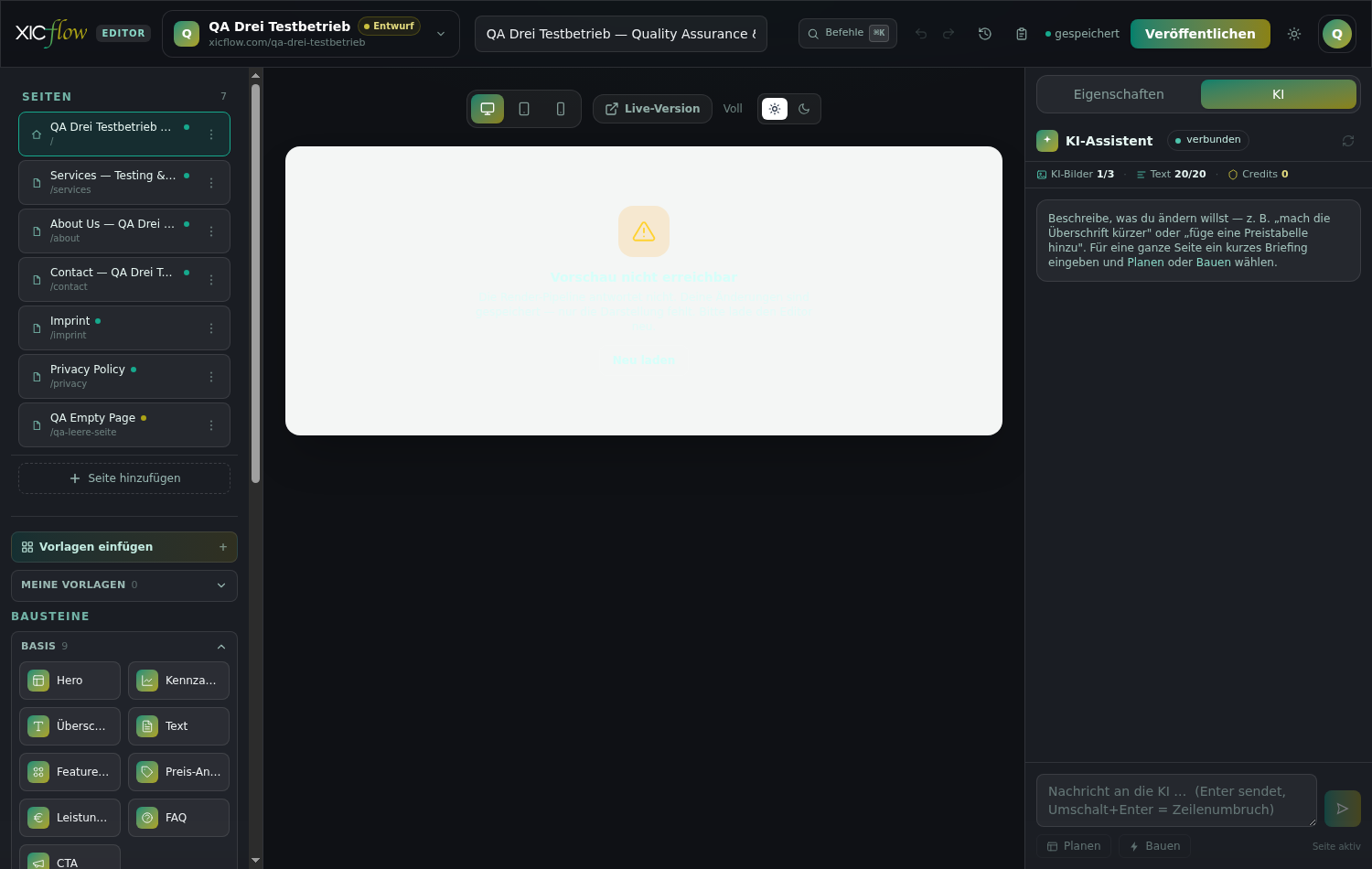
You will find it in two places. In the editor it sits on the right under the “AI” tab, where it knows the open page and the selected block. In the “Brand & design” area the same column sits along the right-hand edge, there without reference to a single page — it helps with questions about the website as a whole.
| Task | What happens | Approval required |
|---|---|---|
| Survey the website | Reports name, languages, number of pages, status and connected addresses. | no, read only |
| List pages | Path, title, status and number of blocks per page. | no, read only |
| Read the make-up of a page | The sections of the page with their blocks and their content. | no, read only |
| Read the block catalogue | Which block types exist and what they expect. Header and footer are excluded. | no, read only |
| Find a page or block | Searches by title, slug, path or content. With several matches the assistant asks back instead of guessing. | no, read only |
| Create a page | Creates a page with a path and a title. | yes, card in the history |
| Append a block | Appends a block to a page; the values are checked against the block type first. | yes, card in the history |
| Change a block | Replaces individual values of a block; everything else stays as it is. | yes, card in the history |
| Delete a block | Removes a block from the page. | yes, marked as far-reaching |
| Set meta title and description | Changes what a page tells search engines. | yes, card in the history |
| Restore an earlier state | Restores a saved restore point; the current state is saved beforehand. | yes, marked as far-reaching |
What the assistant does not do
- Publishing. Your changes only go live once you click “Publish” in the editor.
- Changing the header and footer. Those areas are not part of the catalogue the assistant may touch.
- Setting colours, fonts, logo and favicon. That belongs in the “Brand & design” area.
- Connecting domains, inviting team members, changing plan or invoices.
- Uploading or deleting media. The AI generates images at the image field of a block and during a build via “Build” — not in the chat.
- Reaching content that is not yours. The assistant only ever sees the selected website of your account.
Rules that always apply
Everything the AI produces follows the same requirements: accessible to WCAG 2.2 AA, privacy-compliant with a cookie notice, an alternative text on every image, an imprint and a privacy policy in every page structure. On top of that: no emojis and no absolute promises such as “guaranteed”, “error-free” or “100 %”.
In headings the AI highlights at most one keyword using ==word== — on the website that appears in your brand gradient. Whole sentences are never marked. In body text, **bold**, *italic* and links are available as well.
Opening the AI column
In the editor, the inspector on the right has two tabs: “Properties” and “AI”.
-
Click the “AI” tab at the top right.
The column is headed “AI assistant”.
-
On narrow screens, tap “Properties” in the bottom bar.
The right-hand panel slides open; choose the “AI” tab there.
-
Alternatively press Ctrl+K (Cmd+K on a Mac) to open the command search.
Then choose “Open AI assistant”.
Next to the title sits a small status. In three words it tells you whether the AI can work.
| Indicator | Meaning | Reply in the history |
|---|---|---|
| “connected” | You are signed in and a website is selected at the top left. | The assistant works normally. |
| “Demo mode” | You are not signed in. | “In demo mode the AI chat is disabled. Sign in or create an account …” |
| “No site selected” | You are signed in, but no website is selected. | “Select a site at the top left (or create one) …” |
| No connection to the AI service | The service does not answer. | “The AI backend is currently unavailable. Please try again in a moment.” |
Below that you see your usage: “AI images”, “Text” and “Credits”. At the top right, a button opens “New chat” — it clears the history, any open proposals and notices and starts a new conversation without changing your website. As long as there is nothing to clear, it stays greyed out.
The box above the history explains how to start: “Describe what you want to change — e.g. “make the heading shorter” or “add a pricing table”. For a whole page, enter a short brief and choose Plan or Build.” The input field itself is labelled “Message to the AI”; while it is empty it reads “Message to the AI … (Enter sends, Shift+Enter = line break)”. When a page is open, the note “Page active” appears next to the buttons.
With a keyboard and a screen reader
The history is labelled “Chat history” and announces new answers on its own. The button at the top right is announced as “Start a new chat”, every proposal card carries the label “Proposed change”, the close buttons read “Close error message” and “Close notice”, and the usage bar is announced as a whole. Every button in the column can be reached with the Tab key.
Phrasing an instruction
The more precise the instruction, the less you have to correct afterwards. The assistant knows which page is open and which block is selected — everything else you tell it.
-
First select the block you are talking about.
The assistant receives its type as context, so “this heading” refers exactly to that block.
-
Name the target and the result in one sentence.
That is: which block or page, which field, and what should come out of it.
-
Send with Enter; Shift+Enter adds a line break.
The answer appears word by word in the history.
If you name a different page or block, the assistant looks for it first. If the name matches several results, it asks back and changes nothing — so it cannot hit the wrong thing.
So that answers stay tied to your content rather than being made up, the editor adds matching excerpts from this very website to the request — up to five excerpts totalling around 6,000 characters. That is why the assistant can also answer questions about your own copy.
Instructions that work
- “Shorten the heading in the selected block to six words at most.”
- “On the Services page, add three cards below the opener: maintenance, repair, inspection.”
- “Write a meta description of at most 160 characters for the home page.”
- “Make the page nicer” is less helpful — no concrete step can be derived from it.
One instruction per message
Several wishes in one message lead to several cards at once — or to the assistant stopping after eight working steps. Small, clear steps get there faster and can be approved one at a time.
Instruction, “Plan” or “Build”
Below the input field are two extra buttons: “Plan” and “Build”. Together with sending a normal message that gives you three ways of working — they differ in how much the AI touches at once.
Regular instruction (“Send”). You write what should change and press Enter or choose “Send”. Shift+Enter adds a line break. The answer appears word by word. If a block is selected, the AI takes it as context — so select the block in question first. While it works, a note such as “AI is editing the blocks …” sits below the history; if it has to correct a value, it changes to “AI is correcting a block …”.
“Plan”. Write a short brief into the input field — your field of work, what you offer, which pages you want — and choose “Plan”. The AI drafts a page structure from it and answers, for example, “Draft created: … page(s) planned. Use “Build” to realize it.” Your website itself stays untouched.
The draft covers all marketing pages plus the mandatory legal pages, with a sensible sequence of blocks for each page. A question block within it always holds exactly six questions.
“Build”. Same starting point, but now the AI creates pages and blocks. That runs in the background: a progress note “AI is building the website …” appears at the bottom of the column, sometimes with a percentage or the addition “(queued)”. The chat then reports the outcome, for example “Done: created … page(s) and … block(s).”, and the editor loads the new state.
| Way of working | What the AI does | What changes straight away |
|---|---|---|
| “Send” (Enter) | Answers in the history and puts a proposal card underneath for changes to blocks. | Nothing, until you choose “Apply”. |
| “Plan” | Drafts a page structure with a block sequence from your brief and sums it up in a few lines. | Nothing on the website. |
| “Build” | Creates pages and blocks. The run works in the background and reports its progress. | Pages and blocks appear immediately; the editor then loads the new state. |
Maintenance and service
Fixed appointments, an agreed scope and a report after every visit.
Named contacts
The same people from the first enquiry through to handover on site.
Documented workmanship
Work carried out to the applicable standards and recorded for your files.
| Quantity | Value | What it means |
|---|---|---|
| Brief | up to 8,000 characters | The field does not accept longer input. |
| Pages per build | up to 40 | Larger websites are created across several runs. |
| Blocks per build | up to 500 | Counted across all pages of that run. |
| Simultaneous builds | one per website | A second click on “Build” attaches to the running job instead of starting a second one. |
| Progress polling | roughly every 2.5 seconds | The display refreshes itself as long as the column stays open. |
| How long the display waits | up to 10 minutes | After that it ends with a timeout note; the run itself may continue. |
| Stalled run | after 30 minutes | If a run reports no progress for that long, it no longer blocks a new build. |
| Message | When it appears |
|---|---|
| “Please enter a short brief first.” | You choose “Plan” or “Build” with an empty input field. |
| “Draft created: … page(s) planned. Use “Build” to realize it.” | “Plan” has finished and drafted a page structure. |
| “AI is building the website …” | The build is running. |
| “AI is building the website … (queued)” | The job is waiting for a free slot. |
| “AI is building the website … (… %)” | The run reports progress as a percentage. |
| “Done: created … page(s) and … block(s).” | The build has finished. |
| “The website has been built.” | The build has finished but reports no counts. |
| “The build was saved and is loading …” | The editor is fetching the new state. |
| “The build was saved on the server. Reload the page to see it.” | The new state is ready, but the editor could not load it itself. |
| “The AI build failed. Please try again.” | The run was cancelled. |
Without a brief the buttons stay greyed out
Both buttons only become active once the input field contains something. If you click anyway, the note “Please enter a short brief first.” appears. Only one build runs at a time per website.
“Build” writes straight away
Unlike a single instruction, “Build” creates pages and blocks without an approval card. On a website that already has finished content, work through individual instructions instead — or look at the draft with “Plan” first.
Reviewing and applying proposals
When the AI changes something in your blocks, it puts the result as a card below the chat history. Each card names the change in one line, with “1 block affected” or “… blocks affected” underneath.
-
Read the description on the card.
It states in a single line what the change is about.
-
Choose “Apply” to pull the change into the page.
If you do not like it, choose “Dismiss”.
-
Check the confirmation in the history.
After applying, a short line appears, for example “Change applied (1 block).”
| Part of the card | What it says |
|---|---|
| Description | One line about the change — creating a page, or changing a block. If it is missing, the card reads “Proposed change to the page”. |
| Scope | “1 block affected” or “… blocks affected”. If the proposal contains nothing applicable, it reads “No applicable block in the proposal.” and “Apply” stays greyed out. |
| “Apply” | Pulls the change into the page. While it is being applied, the button is locked. |
| “Dismiss” | Removes the card without changing anything. |
| Bulk bar (from two cards) | “… proposals open” with the buttons “Apply all” and “Dismiss all”. |
What happens when you apply
If the proposal brings finished blocks with it, the editor appends them to the open page — existing blocks stay where they are. The first new block is selected right away, and the editor saves the previous state beforehand so that “Undo” brings it back.
If the assistant carries the change out itself — creating a page, say, or setting the meta information — the server writes a restore point first and notes the change in the log of the website. The editor then reloads the page. You will find both under “Version history” and “Activity”.
Approving several proposals at once
As soon as at least two applicable proposals are waiting, a bar appears above them with the count (“… proposals open”) and the buttons “Apply all” and “Dismiss all”. “Apply all” works through the cards one after another and reports at the end how many changes were applied. If a single one fails, exactly that card stays in place so you can try again; the page itself is reloaded only once.
While the bulk approval runs, the individual cards are locked. “Dismiss all” clears the list completely without changing anything on the website.
| Message | Meaning |
|---|---|
| “Change applied (1 block).” / “Change applied (… blocks).” | Finished blocks from the proposal are now on the page. |
| “Change applied.” | A change was carried out and saved; the editor reloads the page. |
| “… changes applied.” | The bulk approval ran through completely. |
| “… of … changes applied, … failed.” | The bulk approval partly succeeded; the failed cards stay in place. |
| “The proposal could not be applied.” | The blocks could not be inserted into the page. |
| “Apply failed. Please try again.” / “Apply failed: …” | The change was rejected — for example because the proposal had expired. The card stays in place. |
| “I have prepared a change — please review and apply below.” | The AI wrote no reply text but left a card behind. |
| “(no answer)” | Neither text nor a proposal came back. |
- 1
Send your enquiry
Describe in a few sentences what you need.
- 2
Agree a date
You receive two proposed appointments to choose from.
- 3
Work is carried out
After the visit you receive the report.
Nothing happens unasked
As long as you do not click anything on a card, your page stays as it is. You can collect several proposals and decide later — within the ten minutes a card stays valid.
Cancelling a run
While the AI is answering or building, the send button turns into a red “Stop” button.
-
Choose “Stop” to cancel the running job.
The button sits where “Send” usually is.
-
The chat stops cleanly.
No error message appears and whatever was already written stays in place.
-
Rephrase your request and send it again.
It often helps to select the block in question beforehand.
“New chat” also cancels a running job and starts over on top of that. Changes you have already applied are unaffected — you revert those with “Undo” or via “Version history”.
A started build keeps running
A page build already started via “Build” continues in the background; “Stop” only ends the progress display. Reload the editor later to see the result.
Limits of a conversation
A conversation with the assistant is deliberately limited — in length, in working steps and in changes. Those limits guard against endless loops and against an old proposal landing on a state that has long since moved on.
| Limit | Value | What happens when it is reached |
|---|---|---|
| Length of a message | up to 8,000 characters | Longer input is rejected. |
| History sent along | up to 40 entries, each up to 8,000 characters | Older entries no longer feed into the answer. |
| Working steps per answer | up to 8 | If a task needs more, the answer ends — split it into smaller instructions. |
| Applied changes per conversation | up to 30 | After that the assistant asks you to start a new chat. |
| Validity of a proposal card | 10 minutes | After that it can no longer be applied. |
| AI requests per minute | up to 30 | Beyond that the chat reports “The AI is busy right now. Please try again in a moment.” |
Once thirty changes have been applied in one conversation, the assistant asks you to start a new chat. That is not an error but a clean break: a fresh conversation starts without the old history and without open cards.
Switching website or page also starts a new conversation. Any open proposal cards disappear with it — they belonged to the previous page and would no longer fit.
Rewriting copy: the seven commands
In the “Properties” tab, every text field and every multi-line text field has a slim bar underneath that starts with “AI” (tooltip: “AI text commands”).
-
Select the block whose text you want to change.
The inspector then shows its fields.
-
Find the right field in the “Properties” tab.
It has to contain text already, otherwise the commands stay greyed out.
-
Choose one of the seven commands: “Shorter”, “Longer”, “Rephrase”, “More professional”, “Simpler”, “Bullet points” or “Fix”.
Each command works on that one field only.
-
Wait a moment — the new text then replaces the content of the field.
While it works, a small spinner turns inside the command you chose; the preview picks the change up straight away.
| Command | What the AI does with the text |
|---|---|
| “Shorter” | Makes the text more concise and noticeably shorter without losing the key points. |
| “Longer” | Phrases it more fully and vividly — without repetition and without inventing facts. |
| “Rephrase” | Says the same thing in different words, at a similar length. |
| “More professional” | Makes it more factual and sober, without promotional exaggeration. |
| “Simpler” | Makes it easier to follow: clear, short sentences. |
| “Bullet points” | Turns it into a compact bulleted list. |
| “Fix” | Corrects spelling, grammar and punctuation without changing style or meaning. |
What is preserved
- The language of the text — more precisely, the language version you are currently editing.
- Existing highlights using ==word== as well as **bold**, *italic* and links.
- The meaning: no facts, figures or promises are invented, and words such as “guaranteed”, “error-free” or “100 %” are avoided.
- German text keeps its real umlauts; what comes back is only the revised text, with no preamble and no surrounding quotation marks.
- The tone you set for your brand applies here as well — see the next section.
One command processes up to 6,000 characters. If you do not like the result, revert it with “Undo” or choose a different command. Without a selected website the buttons stay greyed out; the tooltip then reads “Only available with a signed-in website”. Inside list entries — the cards of a grid, for instance — the bar is not available; you edit those texts by hand or through the chat.
We handle maintenance, repairs and inspections — from the survey on site to the report for your records.
- Maintenance to an agreed schedule
- Repairs with documented spare parts
- An inspection report for every visit
The tone of the generated copy
How the AI sounds is something you set once: in the “Brand & design” area under “Brand voice”. The choice affects everything produced afterwards — building whole pages, answers in the chat and the text commands.
| Tone | Short description in the editor | How the AI then writes |
|---|---|---|
| “Professional” | Factual, competent, trustworthy | Clear statements without marketing filler. |
| “Friendly” | Approachable, warm, personal | An inviting, direct form of address. |
| “Confident” | Direct, persuasive, pointed | Strong verbs, clear statements of benefit. |
| “Playful” | Casual, lively, humorous | Short sentences, light wordplay. |
| “Premium” | Elegant, exclusive, refined | Calm, chosen language focused on quality. |
| “Technical” | Precise, fact-based, detailed | Correct terminology, a matter-of-fact register. |
| “Inspirational” | Motivating, visionary, emotional | Imagery and outlook, but without empty superlatives. |
Below the tiles sits the field “Your own voice (optional)”. There you describe in your own words what your address is like — that you use a formal register, use jargon sparingly and emphasise your region. Up to 400 characters of it feed into every text instruction. “Save voice” stores both.
Whatever the tone, the rules stay in force: no absolute promises, no invented figures, no emojis. A playful tone therefore does not turn a statement into advertising — it only changes how it is phrased.
Existing copy stays as it is
Switching tone rewrites nothing. It applies to text the AI produces or revises afterwards. If you want to bring a page into line, work through its fields with “Rephrase”.
Generating images
Every image field offers four routes to an image: “URL”, “Generate with AI”, “Upload” and “Media library”.
-
At the image field, choose the “Generate with AI” tab.
Without being signed in it reads “AI image generation requires signing in.” instead.
-
Under “Describe the image”, say what should be visible.
For example: bright office with a team at a whiteboard.
-
Under “Purpose”, pick between “Hero”, “Card”, “Gallery”, “Portrait” and “Banner”.
The choice determines format and composition. Without a choice of your own, “Hero” applies to wide areas and “Card” everywhere else.
-
Choose “Generate”.
While it works, the button reads “Generating…”.
-
The finished image is placed into the block straight away.
The preview shows it immediately.
| Purpose | Aspect ratio | Composition |
|---|---|---|
| “Hero” | 16:9 | A wide establishing shot with a calm area in the left third for the headline; subject slightly right of centre. |
| “Card” | 4:3 | One clear subject, centred, filling the frame; an uncluttered background so it still reads when small. |
| “Gallery” | 3:2 | An editorial shot with one subject that also works cropped to a square. |
| “Portrait” | 3:4 | Vertical format, subject in the upper two thirds, calm background. |
| “Banner” | 21:9 | A very wide band, subject centred, generous empty space on both sides. |
What never ends up in the image
- Text, letters, numbers, watermarks, logos or signage — type inside an image could be neither translated nor read reliably.
- Recognisable faces of identifiable people. That protects personal rights and prevents invented customer photos.
- Collages, frames and mocked-up user interfaces.
- The look stays photorealistic, in natural light and with a restrained palette.
Your brand colours and fonts are added to the image description automatically. Every generated image also lands in your media library and can be reused via the “Media library” tab; the “Source” filter separates “All”, “AI images” and “Uploads” there.
Every image needs an alternative text — without one it is not accessible to people using a screen reader. If it is missing, the editor uses your image description. You enter it yourself via “Edit alt text & title”, and “AI: suggest alt text & title” proposes one; the media library chapter describes both in detail.
Images are the most expensive part
Every generated image counts individually against your image quota, and that quota is deliberately smaller than the text one. So describe carefully before choosing “Generate” — even an image you discard has been produced and stays in the media library.
Importing a brand and getting a logo suggestion
In the “Brand & design” area, two more AI features help you get started: analysing an existing website and suggesting a logo. Both only propose — nothing is adopted until you click.
Importing a brand from a website
In the “Import brand from a website” section, enter the address of your existing website and choose “Analyse”. The server fetches the page itself — you do not have to copy anything — and reads its title, meta description, site name, theme colour and a text sample. The “Brand suggestion” is derived from that.
| Field of the suggestion | What it contains |
|---|---|
| Name | The brand name as the analysis found it on the page. |
| Claim | A short strapline. |
| Industry | The industry that was recognised. |
| Tone | One of the seven tones — adopt it with “Apply tone”. |
| Brand voice | One sentence describing the style. |
| Colours | Primary and accent colour as hex values — adopt them with “Apply colours”. |
| Summary | One or two sentences about the company. |
None of it is applied automatically: “Apply tone” sets the tone and brand voice, “Apply colours” the two colours. The analysis only reads publicly reachable addresses — internal addresses and pages behind a password are refused.
Getting a logo suggested
In the “Logo” section, switch to “AI logo”. The result is a vector graphic that stays sharp at any size.
| Field | Meaning | Limit |
|---|---|---|
| “Brand text” | The name that appears in the logo. Left empty, the name of the website is used. | up to 60 characters |
| “Type” | “Wordmark” (lettering only), “Symbol + text” (mark on the left, lettering on the right) or “Monogram” (one or two initials in a square). | three options |
| “Hint (optional)” | Style or motif in your own words, for example plain and geometric. | up to 300 characters |
| Colours | The primary and accent colour of your brand. Without them the AI picks two suitable colours. | one hex value each |
“Generate” starts it, “Regenerate” fetches another version. The suggestion first appears in the preview only — light and dark. Only “Apply as website logo” puts it to use, and “Remove logo” takes it out again. Every version is checked before it is shown: only drawing elements are allowed, no program code, no external references and no opaque background.
Every run counts
One analysis and every logo suggestion count as a text action against your monthly quota — even if you do not adopt the result. A failed run, by contrast, is not counted.
Having posts written
In the “Blog” area, the AI suggests topics and writes complete posts from them. The procedure is described in the chapter on content, media and blog; here is what a generated post always brings with it.
| Specification | Value |
|---|---|
| Length | roughly 1,200 to 1,800 words |
| Structure | an introduction, then four to seven sections with a subheading and one to three paragraphs each |
| Question block | exactly six questions with answers |
| Blocks | intro, heading, paragraph, list, card grid, callout, quote and question block |
| Meta title | 50 to 60 characters |
| Meta description | 150 to 160 characters |
| Address (slug) | lower case, hyphenated, at most six words |
| Reading time | calculated from the body text at 200 words per minute |
| Languages | title, description and content are produced for every active language of the website |
The topic suggestions know the titles of your existing posts and do not repeat them. Generated posts land in your list as drafts — scheduled or published only if you set it that way.
The check after writing
Every finished post then goes through a check for inadmissible advertising claims: “guaranteed”, “100 %”, “error-free”, “no. 1”, “market leader”, “world-leading”, “unbeatable” and “risk-free” — including their German equivalents. If the check finds something, there is exactly one repair run. If anything is still left after that, the post is discarded rather than published.
Invented statistics, studies, figures and awards are ruled out as well. Even so, read the post through before publishing it: only you know whether the statements about your business hold true.
Quotas and cost
AI actions run on two separate budgets: the conversation in the chat on a chat balance of its own, everything else on the monthly quotas for AI text and AI images. You see both above the input field and in full in the “Account” area.
| Action | Counts against | Cost beyond the quota |
|---|---|---|
| A message in the chat (“Send”) | chat balance, by the size of question and answer | no credits |
| “Plan” | AI text, one action | 1 credit |
| “Build” | AI text, one action | 1 credit |
| A text command below a field | AI text, one action | 1 credit |
| Generating a logo | AI text, one action | 1 credit |
| Importing a brand from a website | AI text, one action | 1 credit |
| Topic suggestions and generated posts | AI text, one action each | 1 credit |
| Generating an image at an image field | AI images, one image | 4 credits, 12 in premium or 4K quality |
| Images created during a build | AI images, per image | 4 credits, 12 in premium or 4K quality |
Counting happens per action, not by length of text; only the conversation in the chat is billed by size. Failed runs are not counted, and if a build breaks off, credits already charged are refunded. The monthly quotas start over with every calendar month; purchased credits stay in your balance.
When the quota is reached
Once a monthly quota is used up, instead of an error you get a note headed “Quota reached — upgrade now”. Below it, the affected area is named: “Your quota for … is used up for this period.” with “AI images”, “AI text” or “AI credits” in the gap — or, in general terms, “Your AI quota is used up for this period.” The history adds the short line “Quota reached.” If the chat balance is empty instead, the chat reports that the chat token quota for this month is used up and that a plan change or a chat token pack will help.
-
Use “Upgrade now” to reach “Choose plan” in the “Account” area.
There you can see which quotas each plan includes.
-
Use “Later” to dismiss the note.
You then carry on working without the AI.
-
Additional credit is available in “Account” under “AI credit packs”.
That tops up the current month without changing your plan.
The editor stays fully usable
Everything outside the AI — typing copy, moving blocks, uploading images, publishing — carries on exactly as before.
What reaches the model
For the AI to work, it has to see your instruction and the necessary context. What exactly that is, feature by feature, is listed here.
| Feature | What is transmitted |
|---|---|
| Chat | Your message, the conversation so far, name and languages of the website, title and path of the open page, the type of the selected block, plus matching excerpts from the content of this website. If the AI looks things up, the page list, page make-up and block catalogue are added. |
| Text command | Only the content of the field, the target language and the tone you set. |
| Generating an image | Your image description plus the colour values and font names of your brand. Image generation runs through a separate service. |
| Generating a logo | Brand text, the chosen type, your brand colours and your hint. |
| Importing a brand from a website | The address you enter is fetched by the server; what reaches the model is the title, meta description, site name, theme colour and a text sample of at most 2,500 characters. |
| Blog posts | Company and industry details from your website, the titles of existing posts and the topic you chose. |
In doing so, the assistant only ever sees content from the selected website of your account. Other websites, other accounts and your contact requests are not part of it.
| What is stored | Content | Default retention |
|---|---|---|
| Log per run | The instruction text, the result, how much was processed and which website was affected. | 90 days |
| Open proposals | The planned change with its preview and differences. | 30 days without further activity |
| Change log | Every applied change with a timestamp and who carried it out — visible under “Activity”. | stays with the website |
| Restore points | The state of the website before a change by the assistant — visible in “Version history”. | stays with the website |
Keep other people’s personal data out of the chat
Whatever you type into the input goes to the language model and is stored in the log of that run. Names, addresses or phone numbers of other people therefore belong only where they are needed — on the page itself, not in an example instruction.
The retention periods named above are the defaults. What else XICflow processes is set out in the privacy policy; contact requests and how long they are kept are covered in the chapter on requests and team.
If something does not work
These are the messages you are most likely to see, together with what helps next.
“The AI is busy right now. Please try again in a moment.”
Too many requests came together in a short time — thirty AI requests per minute are possible per account. Wait a moment, then send the request again.
“The AI is currently unreachable.”
The service did not accept the request. Try again in a few minutes; nothing changes in the editor itself.
“Connection to the AI backend failed. Please try again later.”
The connection broke down on the way — often a network problem. Check your connection and send again.
“Your session has expired. Please sign in again.”
Sign in again and reopen the editor. Anything typed into the chat but not sent is lost.
“The request was incomplete.”
Something was missing from the request, such as the website. Select your website at the top left and send again.
“That did not quite work. Please rephrase the request differently or more precisely.”
Be more specific: name the block, the field and the result you want — and select the block in the editor first.
“An error occurred.”
The run ended prematurely. Send the request again; if that does not help, start over with “New chat”.
“Apply failed. Please try again.”
The card stays in place. Choose “Apply” again. If it keeps failing, the proposal is probably older than ten minutes — dismiss it and rephrase the instruction.
“No applicable block in the proposal.”
The card contains nothing that could be pulled into the page, so “Apply” stays greyed out. Dismiss it and describe more precisely which block should change and how.
The assistant asks for a new chat
Up to thirty changes can be applied within one conversation. After that, choose “New chat” at the top right and carry on there.
“The AI build failed. Please try again.”
Close the message and start “Build” again with a shorter, clearer brief. Credits already charged for a failed build are refunded.
“No result received.” or “AI text command failed.”
The text command came back without a usable result. Choose the command again or pick a different one; the text in the field stays untouched.
“Text refinement is currently unavailable.”
The service did not accept the command. Wait a moment; your quota is not charged for it.
The text commands are greyed out
The field is empty, or no website is selected — the tooltip then reads “Only available with a signed-in website”. Enter some text first, or select your website at the top left.
“The AI returned no image.” or “Image generation failed.”
Adjust the description, pick a different “Purpose” if needed and choose “Generate” again.
“No usable SVG received. Please try again.”
The logo suggestion came back in a form that did not pass the check. Choose “Regenerate”, ideally with a shorter hint.
“Please enter a valid public http(s) address.”
The brand analysis only reads publicly reachable addresses. Enter the address in full, including “https://”, and without password protection.
The usage display looks out of date
It refreshes after every AI action and when you switch back to the browser tab. The complete picture is in the “Account” area.
If none of that helps, start a fresh conversation with “New chat” and break the instruction into smaller steps. If a change seems to be missing, check “Version history” to see whether it arrived after all — and revert it there if needed.